TL;DR:
- If you share documents: give people at least Commenter access, not Viewer. Viewer blocks them from subscribing to updates.
- If you receive documents: open the comments panel, click the notification bell, and turn on notifications for comments, edits, or both.
The problem
You read a Google Doc, close the tab, and move on. Three days later a colleague references a decision that was added to that same doc after you read it. You had no reason to go back and check, so you missed it.
Shared documents change constantly. Without notifications, you only ever see a snapshot from the last time you happened to open them.
The fix
Every Google Doc, Sheet, and Slide has a notification bell icon in the comments panel. Open the comments panel from the toolbar, then click the bell icon.
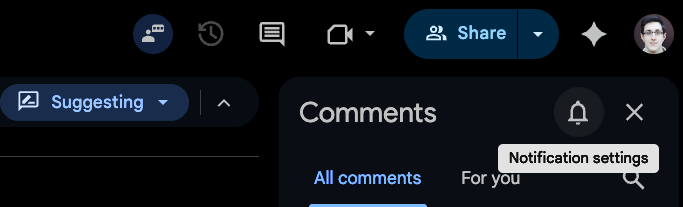
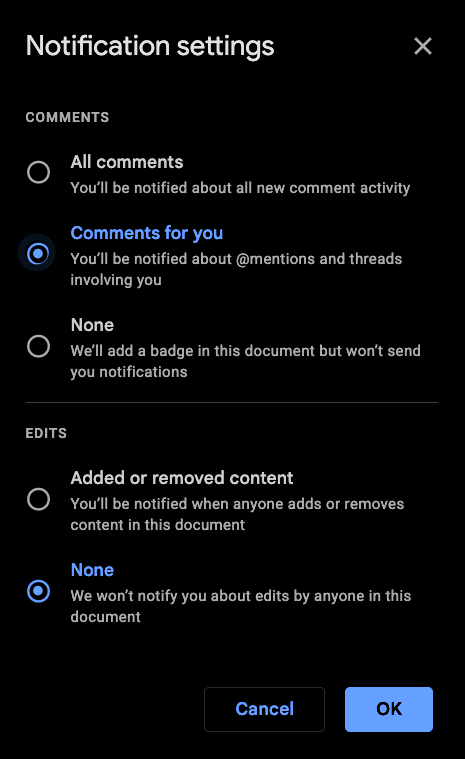
There are two independent settings here:
- Comments controls whether you get notified when people leave comments on the document. “All comments” notifies you about every comment. “Comments for you” only notifies you about @mentions and threads you’re involved in. “None” turns comment notifications off entirely.
- Edits controls whether you get notified when the document’s content changes. “Added or removed content” emails you when someone makes edits. “None” means you won’t hear about changes unless you open the document yourself.
By default, comments are set to “Comments for you” and edits are set to “None”.
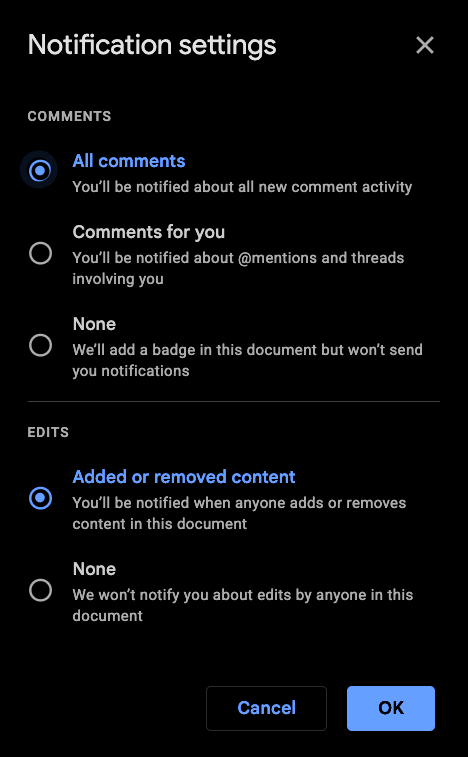
You can enable one, the other, or both depending on the document. For a design doc where you care about discussion but not every small tweak, turn on “All comments” and leave edits off. For a runbook where accuracy matters and you need to know when something changes, turn on edit notifications. For important documents, turn on both.
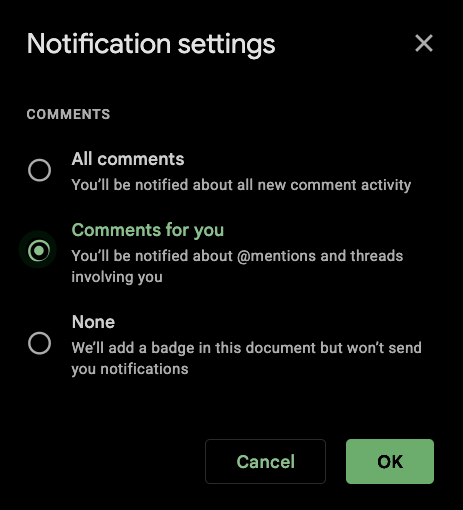
Note: Google Sheets and Slides only have comment notifications. There’s no option for edit notifications like Docs has.
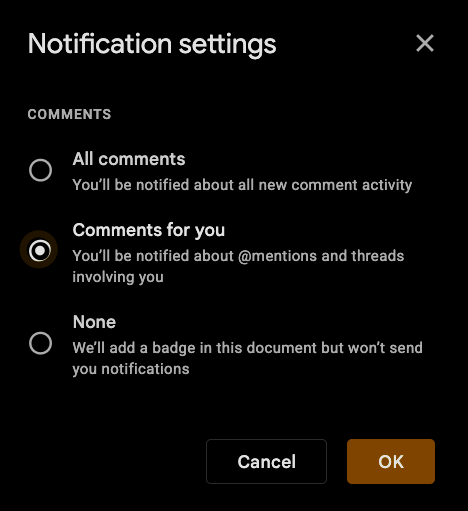
You need to do this per document. There’s no global toggle. But for the documents that matter to your work, it’s worth the five seconds.
Make your documents commentable, not just viewable
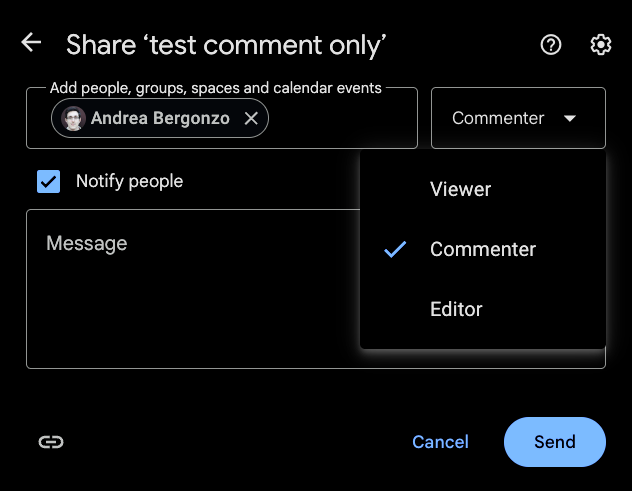
Here’s the catch. When someone shares a document, they choose an access level: Viewer, Commenter, or Editor.
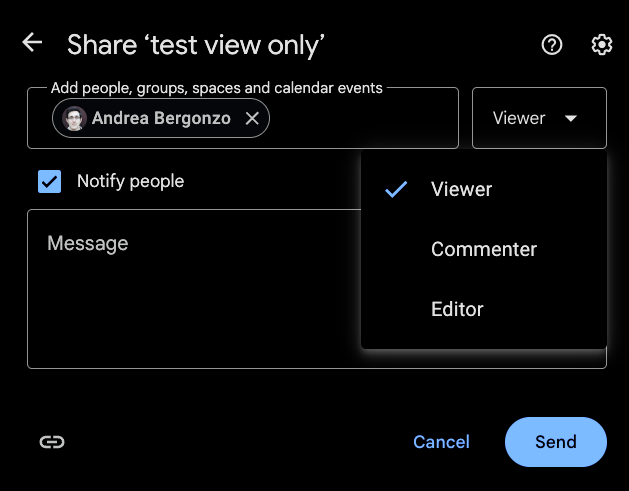
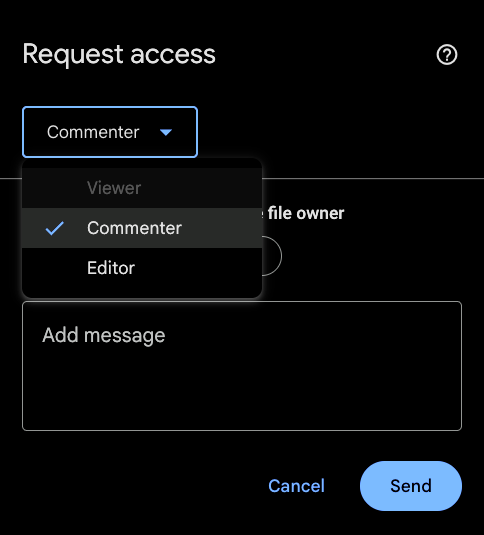
If you receive a document as a Viewer, you can’t subscribe to notifications. The toolbar shows a “Request edit access” button instead of the comments panel.

You can request a different access level, but you’re stuck until the owner upgrades you.
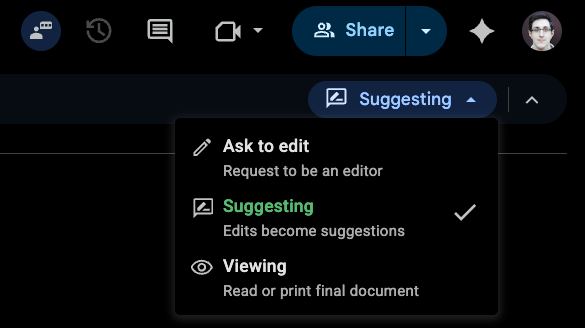
With Commenter access, the full toolbar appears: comments panel, notification bell, and suggesting mode.
If you’re the one sharing, choose Commenter instead of Viewer. People can subscribe to changes and leave feedback without being able to edit the document directly.
Why it matters
Most people treat shared documents as something you read once. The document keeps evolving, but you’ve already moved on. Turning on notifications closes that gap. You stop finding out about changes in meetings and start finding out when they happen.
Five seconds per document. That’s it.